0
0
 0
0
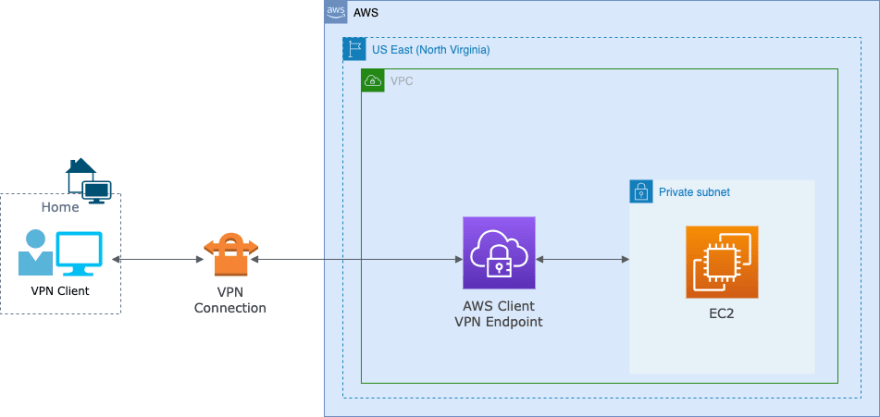
Table of Contents
- Create a VPC
- Authentication
- Create a Client VPN Endpoint
- Enable VPN connectivity for clients
- Authorize clients to access a network
- (Optional) Enable access to additional networks
- Download the Client VPN endpoint configuration file
- Connect to the Client VPN endpoint
- Testing
- Client VPN scaling considerations
- Cost
- Referrals
Step 1. Create a VPC
- Navigate to
VPC Console>Create a VPC - Enter Name as
vpn-vpcand IPV4 CIDR as10.0.0.0/22
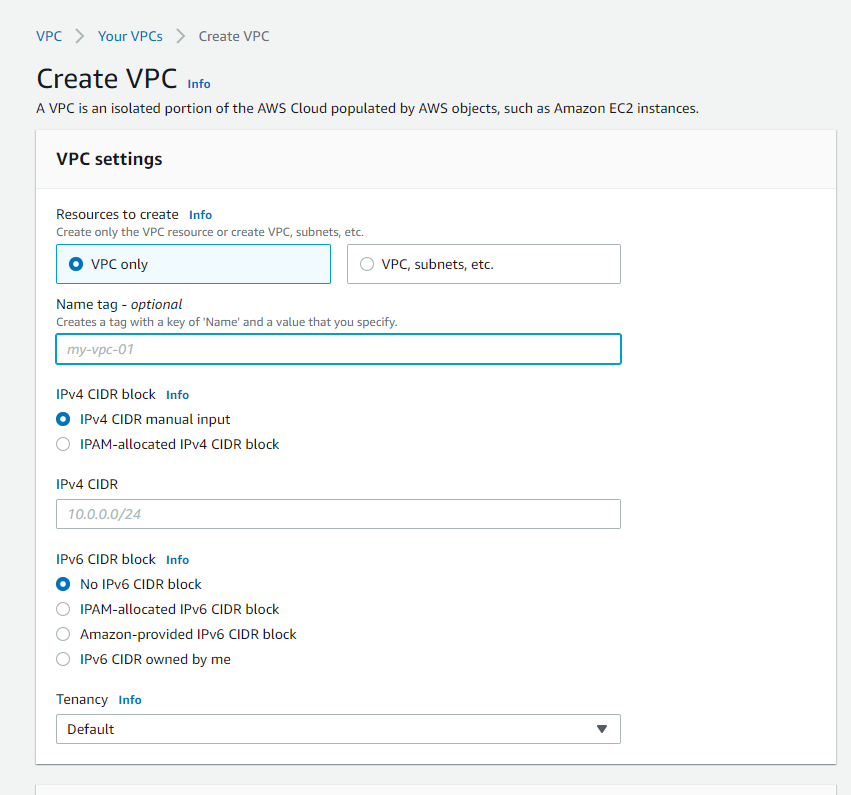
- Navigate to
Subnet> ClickCreate a Subnet> Selectvpn-vpc> Subnet name asprivate-subnetand IPV4 CIDR as172.30.0.0/22
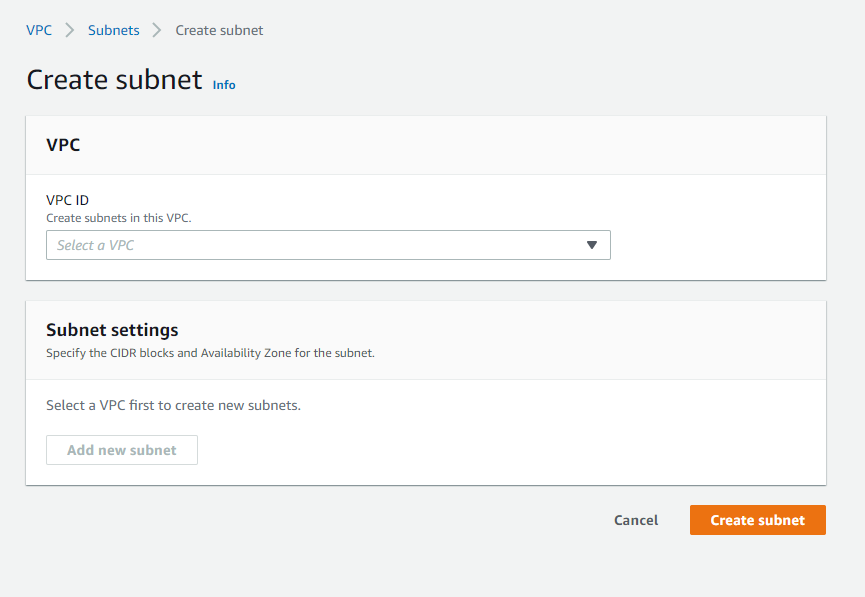
Note: We will launch an EC2 instance into this subnet for a connectivity test at the end.
Step 2. Authentication
Client VPN uses Authentication as the first point of entry into the AWS cloud. There are three ways to authenticate, we are going to use Mutual authenticaiton (certificate-based)
- Active Directory authentication (user-based)
- Mutual authentication (certificate-based)
- Single sign-on (SAML-based federated authentication) (user-based)
Generate Certificates
git clone https://github.com/kasukur/clientvpn.git
cd clientvpn
chmod 755 generate_certs.sh
./generate_certs.sh
Tip: Enter a
directoryname and then you could press ENTER atCommon Nameor provide a name
Upload Certificates to ACM
You do not necessarily need to upload the client certificate to ACM. If the server and client certificates have been issued by the same Certificate Authority (CA), you can use the server certificate ARN for both server and client when you create the Client VPN endpoint.
For this exercise, we are going to upload the server and the client certificates to ACM. Be sure to use the same Region in which you intended to create the client VPN endpoint.
$ aws configureAWS Access Key ID [None]: AKIAIOSFODNN7EXAMPLEAWS Secret Access Key [None]: wJalrXUtnFEMI/K7MDENG/bPxRfiCYEXAMPLEKEYDefault region name [None]: us-west-2Default output format [None]: jsonServer Certificate
aws acm import-certificate --certificate fileb://server.crt --private-key fileb://server.key --certificate-chain fileb://ca.crt
Client Certificate
aws acm import-certificate --certificate fileb://client1.domain.tld.crt --private-key fileb://client1.domain.tld.key --certificate-chain fileb://ca.crt
Step 3. Create a Client VPN endpoint
- Navigate to
VPC Console>Client VPN Enpoints>Create Clinet VPN EndPoint - Provide a
nameanddescription(optional) for the Client VPN endpoint - Enter a Client IPv4 CIDR as
10.0.0.0/22
Note: The IP address range cannot overlap with the target network or any of the routes that will be associated with the Client VPN endpoint. The client CIDR range must have a block size that is between /12 and /22 and not overlap with VPC CIDR or any other route in the route table. You cannot change the client CIDR after you create the Client VPN endpoint.
- Select
Server certificate ARN,Client certificate ARNand checkUse mutual authentication - Select no for
Connection LoggingandClient Connect Handler - Select
Enable split-tunnel - Leave the rest of the default settings, and choose
Create Client VPN Endpoint.
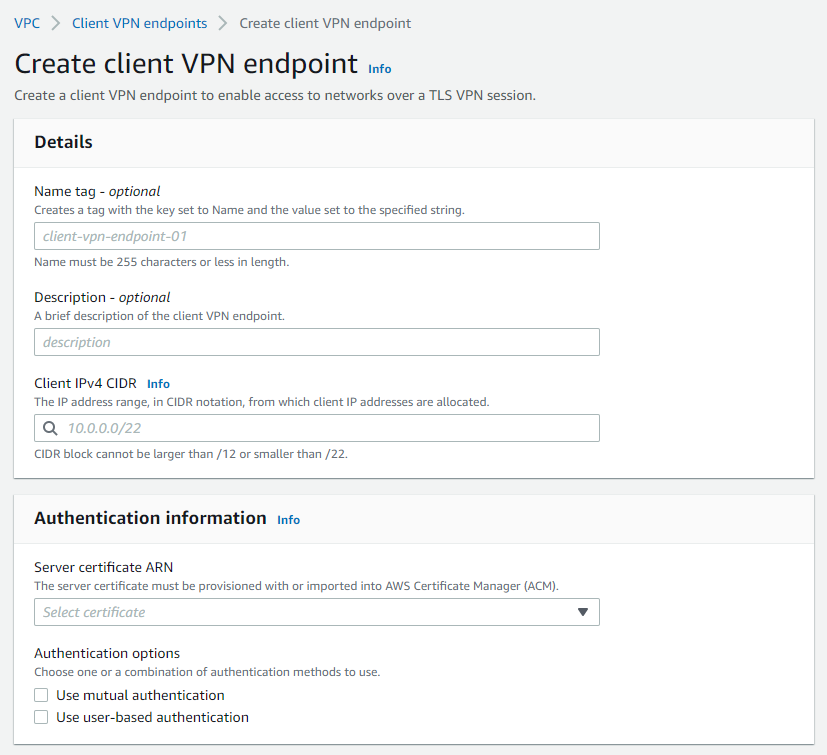
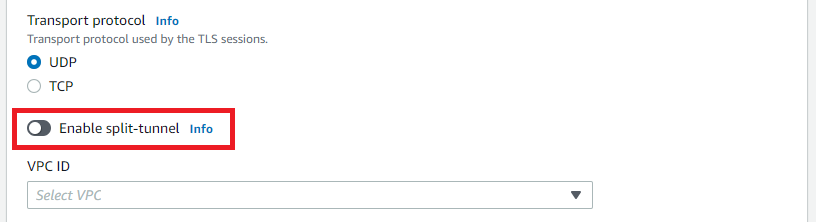
The status of Client VPN endpoint will be in pending-associate at this stage.
Step 4. Enable VPN connectivity for clients
- Navigate to
VPC Console>Client VPN Enpoints> ChooseClinet VPN EndPoint> ClickAssociations> ClickAsscociate - Select the VPC (same VPC as in Step 1) and a subnet
- Click on
Associate
Note: If authorization rules allow it, one subnet association is enough for clients to access a VPC’s entire network. You can associate additional subnets to provide high availability in case one of the Availability Zones goes down.
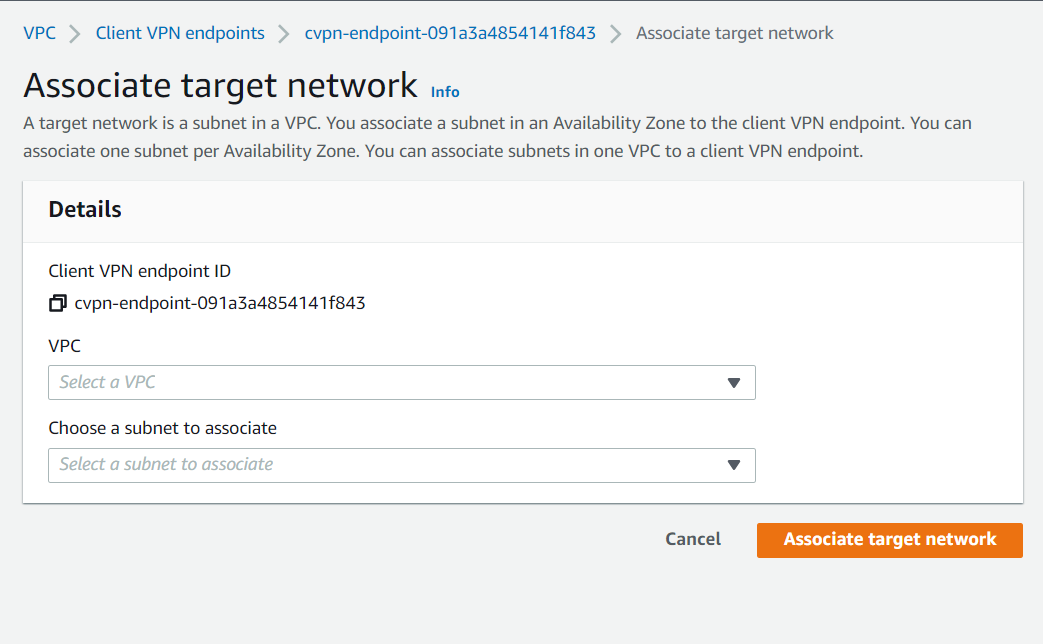
The following are created when we associate the Client VPN Enpoint with the first subnet
- The state of the Client VPN endpoint changes to available. Clients can now establish a VPN connection, but they cannot access any resources in the VPC until you add the authorization rules.

- The local route of the VPC is automatically added to the Client VPN endpoint route table.
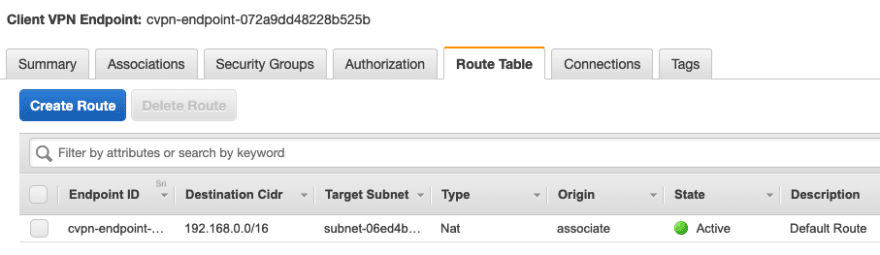
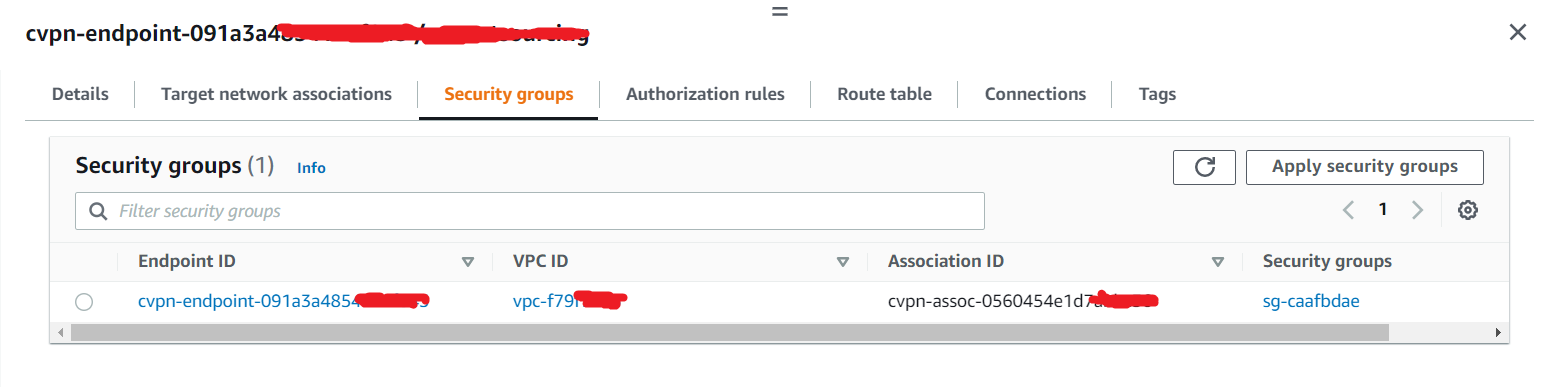
- The VPC’s default security group is automatically applied for the subnet association.
Step 5. Authorize clients to access a network
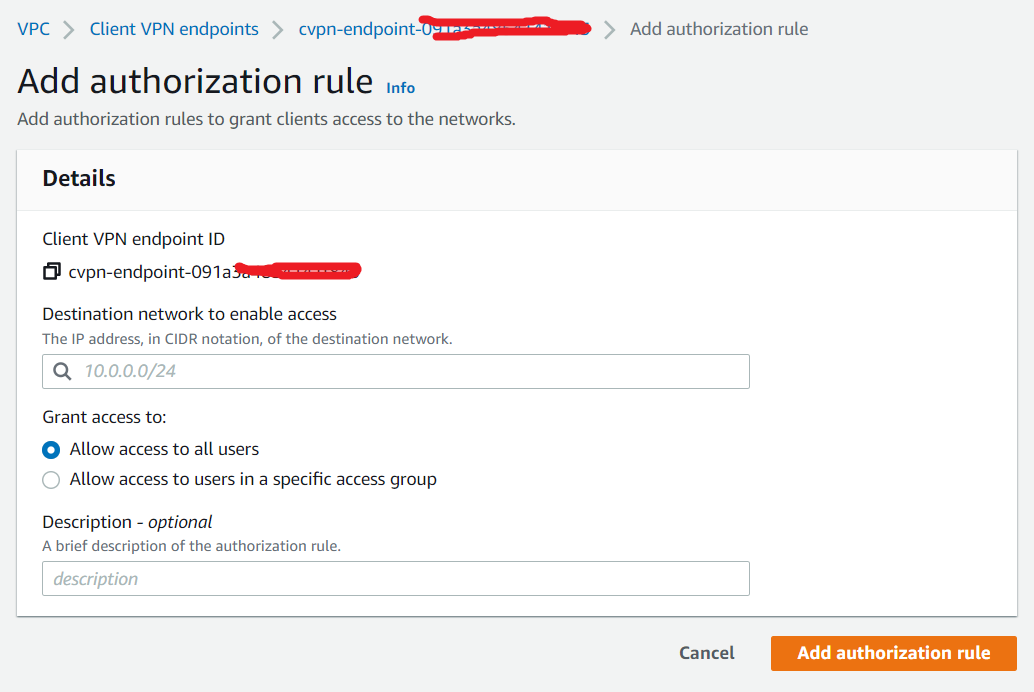
- Navigate to
VPC Console>Client VPN Enpoints> ChooseClinet VPN EndPoint> ClickAuthorization> ClickAuthorize Ingress - Enter
172.30.0.0/16forDestination network to enable,Allow access to all usersforGrant access toand Description asVPC-through-VPNEndPoint - Click
Add authorization rule
Step 6. (Optional) Enable access to additional networks
You can enable access to additional networks connected to the VPC, such as AWS services, peered VPCs, and on-premises networks. For each additional network, you must add a route to the network and configure an authorization rule to give clients access.
More information at Step 5 of Getting started with Client VPN
Step 7. Download the Client VPN endpoint configuration file
- Navigate to
VPC Console>Client VPN Enpoints> ClickDownload Client Configuration - Open Client VPN endpoint configuraiton file and add the contents of the client certificate between tags and the contents of the private key between tags.
<cert>
Contents of client certificate (.crt) file, which is client1.domain.tld.crt under the same direcroty when the server and client certificates are located
</cert>

<key>
Contents of private key (.key) file, which is client1.domain.tld.crt
</key>
- Prepend a random string to the Client VPN endpoint DNS name and add it to Client VPN endpoint configuraiton file as shown below.
remote srivpc.cvpn-endpoint-072a9ee98228b525b.prod.clientvpn.us-east-1.amazonaws.com 443
- Save the file.
- You could distribute the Client VPN endpoint configuration file to your clients if required.
Sample Client VPN endpoint configuraiton file
Step 8: Connect to the Client VPN Endpoint
Note: This is for Windows
- Download latest VPN client application
- Open the AWS VPN Client app.
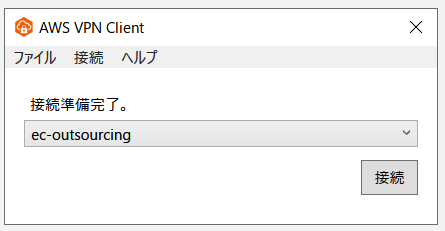
- Choose File, Manage Profiles.
- Enter
Display Name, SelectVPN Configuration Fileand clickVPN Configuration File
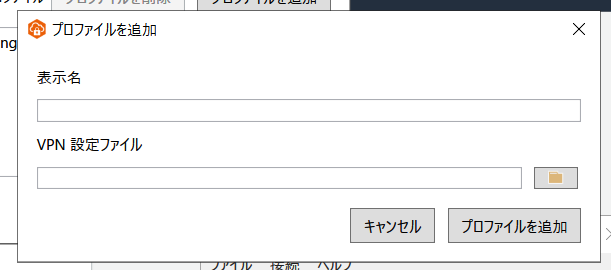
- Click Add.
Step 9: Testing
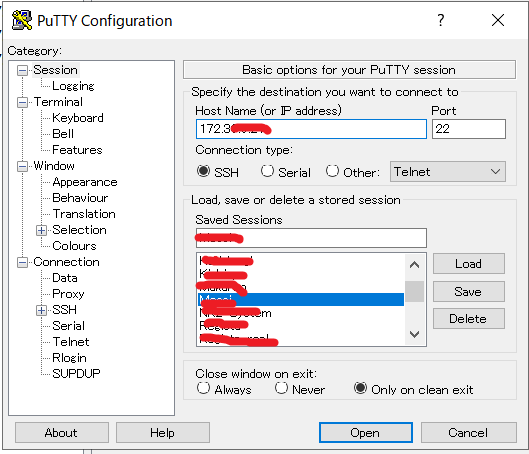
- You could also check by use Putty connect to EC2 instance by private IP